When a product comes in several colours or finishes, the app shows a small photo of each finish on the colour buttons, as on the supplier page. Shoppers see the real colour of the concrete, the wood or the metal before they choose.
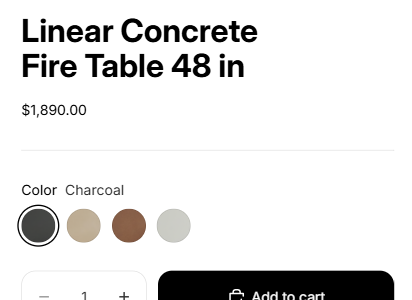
Watch it in under a minute: Colour swatches on your product pages (video).
What the app does
When you send a product, the app looks for an option named Color, Colour, Finish or Shade. For each value of that option, it:
- takes the supplier's photo of that finish;
- reads its main colour on the photo, to file it in Shopify's standard colour list;
- links the option to these colour entries, so your theme can show the swatches.
There is nothing to do in the app: it happens when you click Send to my store as a draft.
The product category
Shopify only shows swatches on a product that has a category. The app chooses a category for every product it sends, from Shopify's list, for example Fire Pits in Outdoor Tables. When it adds swatches, it tells you which one after sending:
Colour swatches added. Shopify needs a product category for them: « (the category chosen) » was chosen; you can change it on the product page.
To check it, open the product in Shopify. The category is under the photos, and the colour values show their swatch in Variants.
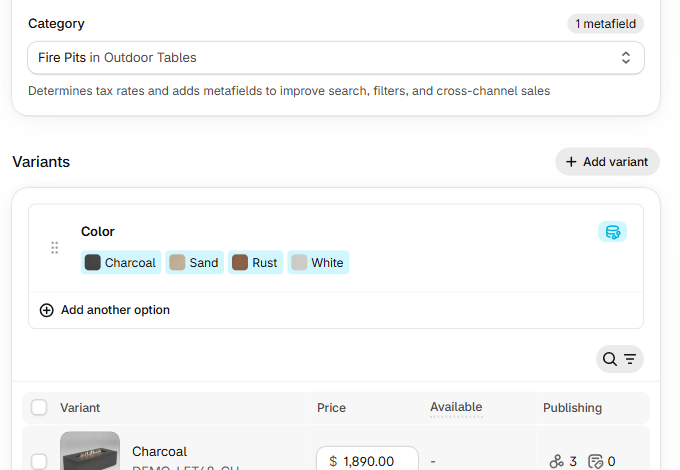
You can choose a closer category. If you change it, check on your product page that the swatches still show.
Show the swatches in your theme
Some themes show swatches as soon as the option is linked to colours, like the theme in the pictures above (Horizon). If your product page still shows plain buttons:
- Open your theme editor on a product page.
- Select the Variant picker block.
- Turn on its swatches setting. Its name depends on the theme, for example Swatches.
- Click Save.
When there are no swatches
After sending, the app may say:
The colours or the product category could not be read: the colour options show as plain buttons.
The product works normally: shoppers choose their colour with text buttons. This happens when the supplier has no photo for each finish, or when no category fits the product.
Good to know
- Each product keeps its own swatches. The Cafe finish of one fire pit keeps its own photo, even if another product has a Cafe finish too.
- Only the colour option gets swatches. Other options, such as Fuel Type or Ignition, stay as buttons.