Many manufacturers do not show prices on their website. They sell through dealers, with a Locate a dealer or Request a quote button instead of a price.
The app copies everything else from the page: photos, tabs, documents, SKU. It never invents a price, so the product arrives without one, and it is protected until you set yours.
Watch it in under a minute: Products without a price on the supplier page (video).
Before sending
The import shows a point to check, written for this product. For example:

In Variants, the price reads Not shown.

You can still send the product. You set the price in Shopify afterwards.
When you send it
The product is created as a draft, with:
- a price of $0.00;
- Inventory tracked turned on, with 0 in stock.
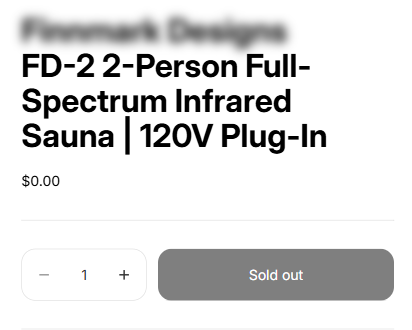
So the product shows as Sold out. Nobody can buy it at $0.00, even if it is made active by mistake. After sending, a yellow box reminds you what to do.
If the product is made active before you set a price, shoppers see this:
Put it on sale
- In the app, click Open the product in Shopify.
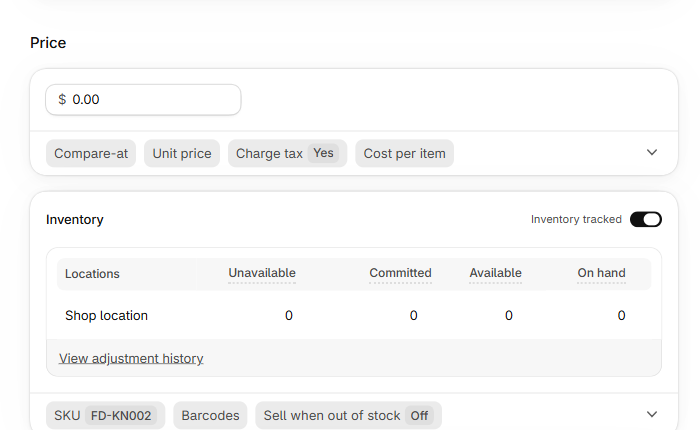
- In Price, enter your selling price. If the product has several variants, enter the price of each one.
- In Inventory, choose one of these:
- turn off Inventory tracked: the product can always be bought. This suits products the supplier ships to your customer;
- keep it on and enter your stock in On hand;
- keep it on and turn on Sell when out of stock.
- Click Save.
- When you are ready, change the Status to Active.
Good to know
- Only the variants without a price are sent as Sold out. The others are sent with their price.
- The app reads the public page of the supplier. Your own dealer price is not on it. You can keep it in Cost per item, under the price, to follow your margin in Shopify.
- The app never changes a price. A price shown by the supplier is copied as it is.