Many high-ticket products need other products to work. A sauna heater needs stones and a control unit, and a gas fire pit needs a burner kit. Suppliers list them on the product page as required or sold separately.
The app reads them and shows them to your shoppers right after the price, as cards with an Add to cart button. Your customers buy everything they need in one order, and you sell more per order.
What the app reads
On the page of an import, the Required components section lists the components found on the supplier page, in groups. For example: Sauna Heater Controls, then Sauna Stones. When a group offers several choices, the table reads Choose one of.
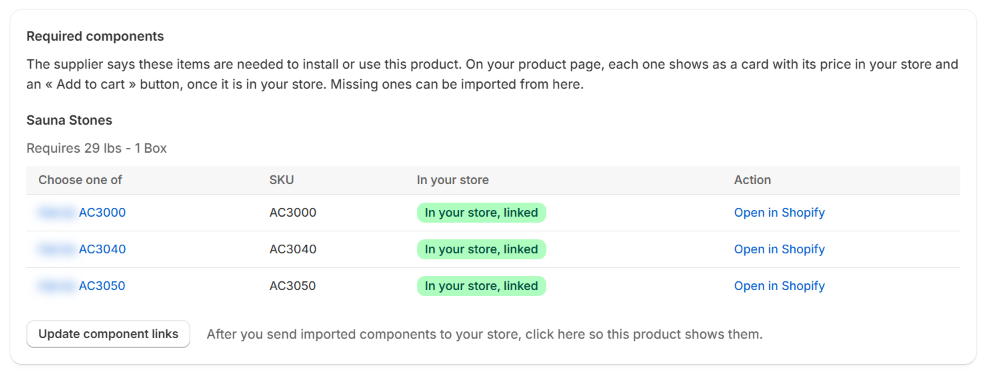
For each component, the In your store column shows where it is:
| Status | What it means | Action |
|---|---|---|
| In your store, linked | The component is in your store and linked to this product. | Open in Shopify |
| Not in your store | You do not sell it yet. | Import |
| Reading | The app is reading its supplier page. The page updates on its own. | About a minute… |
| Read, not sent yet | It was read, and it waits for you to review and send it. | Review and send |
| Not read | Its page could not be read. The reason is written under the button. | Read again |
Import a missing component
- Click Import next to the component. The app reads its supplier page, which takes about a minute.
- Click Review and send. The component opens like any import: check it, then click Send to my store as a draft.
- The back arrow takes you back to the product you started from.
- In Shopify, make the component active, as you do for any product.
When the component is sent, the app links it automatically to every product that needs it. The order does not matter: you can send the heater first and the stones later, or the other way around.
How the app finds components already in your store
A component is linked automatically if:
- you sent it with the app, from its supplier page; or
- a product in your store has the same SKU as the component on the supplier page.
If you added a component to your store another way (by hand, or with another app), open the product that needs it and click Update component links.
What shoppers see
Each component shows as a card with its photo, its name, your store's price and a + Add to cart button. A card appears once that component is active in your store.
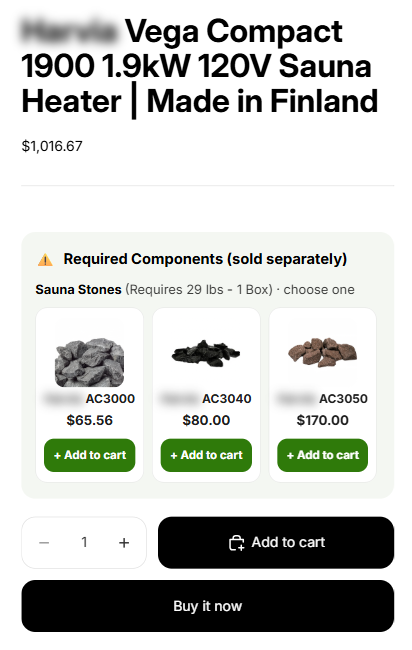
To show the cards, Components and tabs must be turned on in your theme. See the guide Show tabs and components on your store. You can change the heading, the card size and the colors there.
Good to know
- Optional accessories are not copied. Only the components the supplier marks as required are. To suggest accessories, use a section of your theme or the Shopify Search & Discovery app.
- The price on the card is your price, the one of the component product in your store.
- Nothing is sent without you. Clicking Import only reads the page. The component reaches your store when you click Send to my store as a draft.
- A component you send is monitored like any product: the app checks its supplier page every week. See the guide Monitor your suppliers.
- Each component you import counts as one import of your plan, like any product. A heater with 3 stone choices is 4 imports if you import them all. See the guide Your plan and imports.