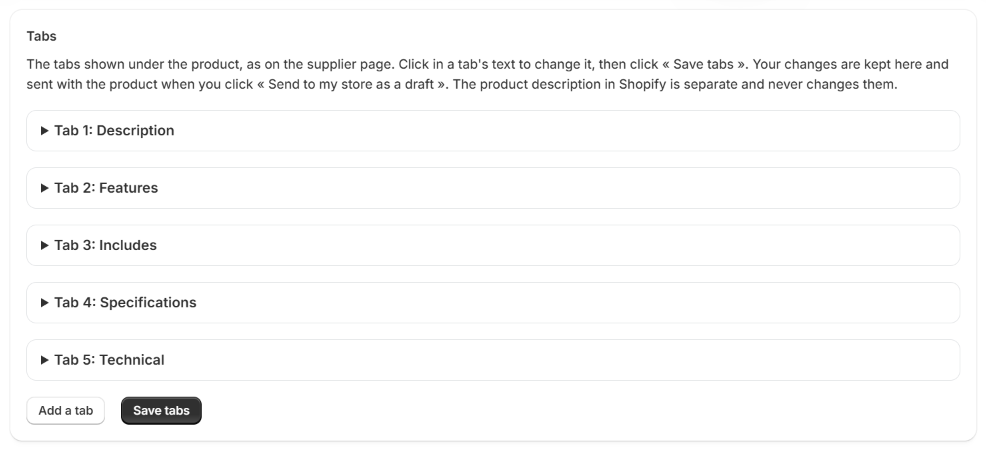
The app copies the supplier's tabs as they are: Specifications, Features, What's included, documents, videos... It also writes an FAQ tab from the supplier's facts. You can change all of them in the app, before or after sending the product.
The tabs and the product description are two separate places:
- The tabs are edited in the app, in Tabs, on the page of each import.
- The product description is yours, and you edit it in Shopify. It never changes the tabs.
Before or after sending
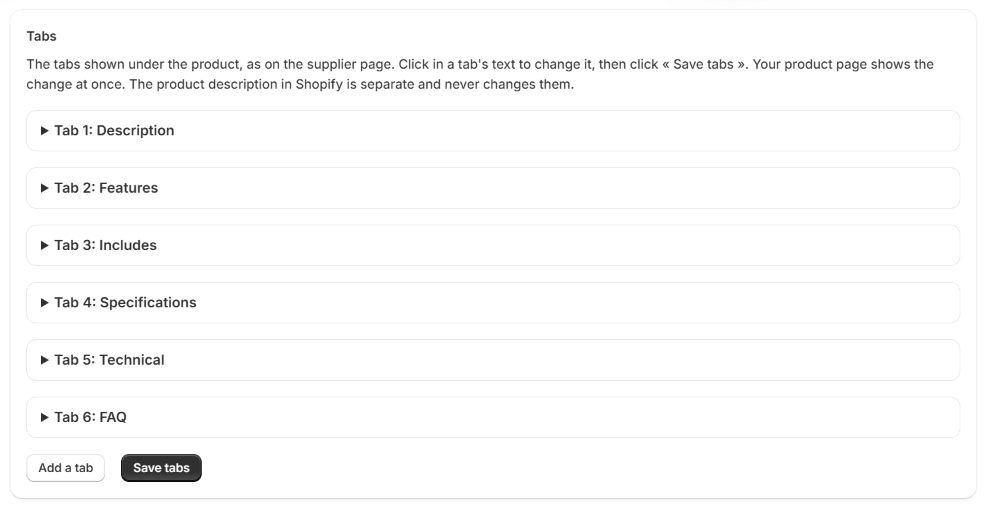
| When you click « Save tabs » | |
|---|---|
| Before sending | Your changes are kept with the import. They go to your store with the product when you click Send to my store as a draft. |
| After sending | Your product page shows the change at once. |
Open a tab
On the page of an import, scroll to Tabs. Each tab is closed, to keep the page short. Click its name to open it, and click it again to close it.
Change a tab
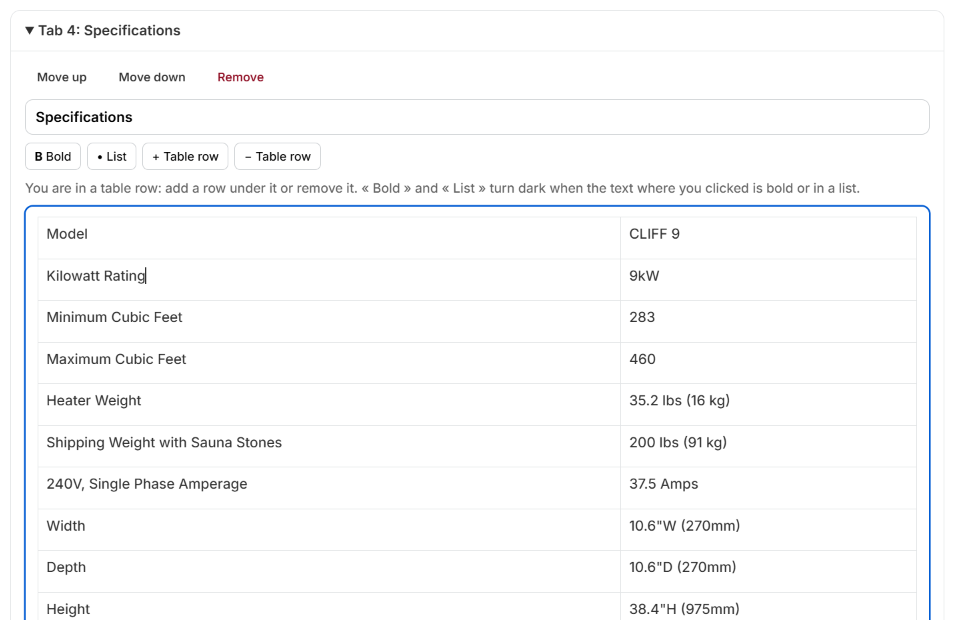
When a tab is open, you can:
- Rename it: type in the name field. A name has 60 characters at most.
- Change its text: click in the text and type, as in a document.
- Make text bold or make a list: select the text, then click Bold or List. The button turns dark when the text where you clicked is already bold or in a list.
- Add or remove a table row: click in a row first, then click + Table row to add an empty row under it, or − Table row to remove it. These two buttons only work when you click in a table.
- Change the order: click Move up or Move down.
- Delete the tab: click Remove.
To add a tab, click Add a tab, under the tabs. A new tab called New tab opens at the end. Give it a name and a text.
Save
Click Save tabs. A green message confirms it:
- before sending: Saved: these 4 tabs are sent with the product when you click « Send to my store as a draft ».
- after sending: Saved: your product page now shows 4 tabs.
If you leave changes unsaved, the app reminds you: You have changes that are not saved yet.
Go back to the supplier's tabs
Before sending, if you saved changes, the button Back to the supplier's tabs brings back the tabs as the app read them on the supplier page.
Good to know
- Every tab needs a name. The app does not save a tab that has text but no name. A tab with no name and no text is removed when you save.
- Text pasted from another website or a document is cleaned. The app keeps paragraphs, titles, bold, italics, lists, tables and links. It removes colors, fonts, images and scripts, so your tabs always match your theme.
- Links keep their web address and open in a new window.
- The supplier's shipping and returns tab is only copied if you turn it on in Settings. Those are the supplier's own terms: edit the tab so it matches your store's terms.
- The FAQ tab only uses facts from the supplier page: an answer with a figure that is not on the page is left out. Check it like the other tabs. You can stop adding it in Settings, with Add an FAQ tab.
- A video tab keeps the link of each video. On your product page, each link shows as a video player. To remove a video, delete its line in the tab.